
If you are searching for LTX 2.5 Video to Video, you may have noticed a confusing discrepancy: while AI creators on X and Reddit showcase stunning video style transfers and anime re-renders powered by LTX 2.5, popular API providers like fal.ai and Replicate do not list a dedicated "Video-to-Video" endpoint.
Does LTX 2.5 natively support Video-to-Video? How can you transform existing video clips using LTX 2.5 today? And what are your options if you do not have a 24GB VRAM GPU?
This guide breaks down the technical reality of LTX 2.5 V2V, provides a complete step-by-step ComfyUI workflow for local video restyling, and details the fastest cloud alternatives.
Want fast AI video generation without local setup? Generate LTX 2.5 AI Videos Online → — access high-fidelity text-to-video and image-to-video directly in your browser.
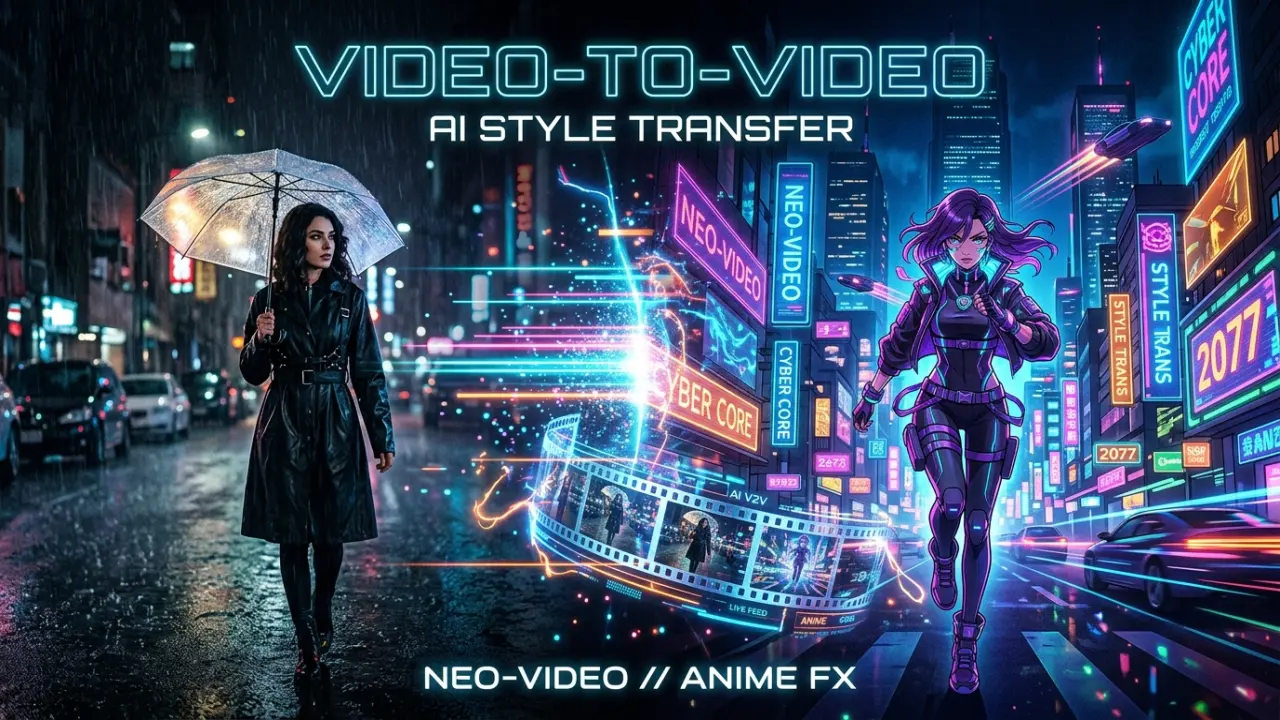
Quick Answer: Does LTX 2.5 Support Video-to-Video?
Yes at the foundational architecture level, but No as a standardized single-click cloud API.
Here is the exact state of LTX 2.5 video-to-video capabilities across different environments:
| Environment / Platform | V2V Availability | How It Works |
|---|---|---|
| Local ComfyUI / Diffusers | Available | Source video is loaded, encoded into latent space via LTX 3D VAE, and resampled/denoised against your text prompt using ComfyUI-LTXVideo. |
| Cloud APIs (fal.ai / Replicate) | No Direct Endpoint | Hosted APIs currently expose Text-to-Video, Image-to-Video (with first/last frame support), and Audio-to-Video (Fast & Pro). |
| Online Web Generators | Keyframe Workflows | Web tools use first/last frame extraction (FLF2V) or keyframe conditioning rather than raw video-in / video-out pipelines. |
Why Cloud APIs Do Not Expose a Direct V2V Endpoint
Unlike image-to-video—which accepts a single clean 2D image—video-to-video requires uploading arbitrary video containers, handling non-standard frame rates, executing heavy 3D VAE latent encoding on dozens of frames, and balancing denoise parameters that vary wildly per clip.
Cloud providers prioritize deterministic, low-latency endpoints (/text-to-video, /image-to-video, /audio-to-video). Full video restyling is currently driven by the open-source community through node-based tools like ComfyUI.
How LTX 2.5 Video-to-Video Works Under the Hood
To understand how to get clean results with LTX 2.5 V2V, it helps to understand its underlying architecture:
- 3D Spatiotemporal VAE: LTX 2.5 uses a specialized 3D causal VAE that compresses video across both spatial dimensions (width and height) and the temporal dimension (time).
- Latent Resampling (Img2Img for Video): When performing V2V, your input video is sliced into frames and encoded into 3D latent tensors. Gaussian noise is added based on your chosen Denoise Strength.
- Diffusion Transformer (DiT) Denoising: The DiT denoises the latent representation toward your target text prompt while retaining the underlying motion trajectories and compositions of the original footage.
- Diffusion Video Decoder: LTX 2.5's new diffusion decoder reconstructs crisp details (faces, hands, sharp edges) during the final VAE decode pass.
Setting Up LTX 2.5 Video-to-Video in ComfyUI
If you have a modern GPU with at least 12GB to 16GB of VRAM (RTX 3080/4070/4090), you can run LTX 2.5 Video-to-Video locally.
Required Prerequisites & Custom Nodes
Ensure you have updated ComfyUI to the latest version and installed the following nodes via ComfyUI Manager:
ComfyUI-LTXVideo(Official Lightricks custom nodes)ComfyUI-VideoHelperSuite(VHS — for loading and combining video frames)ComfyUI-GGUF(Optional, for running quantized 8-bit/4-bit weights on lower VRAM GPUs)
Step-by-Step Node Pipeline
[VHS_LoadVideo] (Load Input MP4)
       │
       ▼
[LTXVideoVAEEncode] (Encode Frames into 3D Latents)
       │
       ▼
[KSampler / LTXVSampler] ◄── [LTX 2.5 Model (FP8/GGUF)]
  • Denoise: 0.50 - 0.65  ◄── [Positive Prompt + Gemma 4 Encoder]
  • Steps: 25 - 35        ◄── [Negative Prompt]
  • CFG / Guidance: 3.0
       │
       ▼
[LTXVideoVAEDecode] (Decode Latents to Video Frames)
       │
       ▼
[VHS_VideoCombine] (Export Restyled MP4)
Complete Ready-to-Use ComfyUI Workflow JSON Template
You can copy the JSON code block below, save it as ltx25_video_to_video.json, and drag-and-drop it directly into your ComfyUI window (or use the Load button):
{
  "last_node_id": 8,
  "last_link_id": 12,
  "nodes": [
    {
      "id": 1,
      "type": "CheckpointLoaderSimple",
      "pos": [40, 100],
      "size": [320, 100],
      "flags": {},
      "order": 0,
      "mode": 0,
      "inputs": [],
      "outputs": [
        { "name": "MODEL", "type": "MODEL", "links": [1], "slot_index": 0 },
        { "name": "CLIP", "type": "CLIP", "links": [2, 3], "slot_index": 1 },
        { "name": "VAE", "type": "VAE", "links": [4, 5], "slot_index": 2 }
      ],
      "widgets_values": ["ltx-2.5-fp8.safetensors"]
    },
    {
      "id": 2,
      "type": "VHS_LoadVideo",
      "pos": [40, 260],
      "size": [320, 220],
      "flags": {},
      "order": 1,
      "mode": 0,
      "inputs": [],
      "outputs": [
        { "name": "IMAGE", "type": "IMAGE", "links": [6], "slot_index": 0 },
        { "name": "frame_count", "type": "INT", "links": null },
        { "name": "audio", "type": "AUDIO", "links": [7], "slot_index": 2 }
      ],
      "widgets_values": {
        "video": "input_video.mp4",
        "force_rate": 24,
        "custom_width": 768,
        "custom_height": 512,
        "frame_load_cap": 97,
        "skip_first_frames": 0,
        "select_every_nth": 1
      }
    },
    {
      "id": 3,
      "type": "VAEEncode",
      "pos": [400, 300],
      "size": [220, 80],
      "flags": {},
      "order": 2,
      "mode": 0,
      "inputs": [
        { "name": "pixels", "type": "IMAGE", "link": 6 },
        { "name": "vae", "type": "VAE", "link": 4 }
      ],
      "outputs": [
        { "name": "LATENT", "type": "LATENT", "links": [8], "slot_index": 0 }
      ]
    },
    {
      "id": 4,
      "type": "CLIPTextEncode",
      "pos": [400, 80],
      "size": [360, 100],
      "flags": {},
      "order": 3,
      "mode": 0,
      "inputs": [{ "name": "clip", "type": "CLIP", "link": 2 }],
      "outputs": [
        {
          "name": "CONDITIONING",
          "type": "CONDITIONING",
          "links": [9],
          "slot_index": 0
        }
      ],
      "widgets_values": [
        "cinematic cyberpunk aesthetic, neon lights, rainy street, detailed face, keeping original motion"
      ]
    },
    {
      "id": 5,
      "type": "CLIPTextEncode",
      "pos": [400, 200],
      "size": [360, 80],
      "flags": {},
      "order": 4,
      "mode": 0,
      "inputs": [{ "name": "clip", "type": "CLIP", "link": 3 }],
      "outputs": [
        {
          "name": "CONDITIONING",
          "type": "CONDITIONING",
          "links": [10],
          "slot_index": 0
        }
      ],
      "widgets_values": [
        "blurry, deformed, low quality, static, frame jitter, oversaturated"
      ]
    },
    {
      "id": 6,
      "type": "KSampler",
      "pos": [800, 120],
      "size": [280, 260],
      "flags": {},
      "order": 5,
      "mode": 0,
      "inputs": [
        { "name": "model", "type": "MODEL", "link": 1 },
        { "name": "positive", "type": "CONDITIONING", "link": 9 },
        { "name": "negative", "type": "CONDITIONING", "link": 10 },
        { "name": "latent_image", "type": "LATENT", "link": 8 }
      ],
      "outputs": [
        { "name": "LATENT", "type": "LATENT", "links": [11], "slot_index": 0 }
      ],
      "widgets_values": [42, "fixed", 30, 3.5, "euler", "simple", 0.55]
    },
    {
      "id": 7,
      "type": "VAEDecodeTiled",
      "pos": [1120, 150],
      "size": [240, 100],
      "flags": {},
      "order": 6,
      "mode": 0,
      "inputs": [
        { "name": "samples", "type": "LATENT", "link": 11 },
        { "name": "vae", "type": "VAE", "link": 5 }
      ],
      "outputs": [
        { "name": "IMAGE", "type": "IMAGE", "links": [12], "slot_index": 0 }
      ],
      "widgets_values": [512]
    },
    {
      "id": 8,
      "type": "VHS_VideoCombine",
      "pos": [1400, 120],
      "size": [300, 260],
      "flags": {},
      "order": 7,
      "mode": 0,
      "inputs": [
        { "name": "images", "type": "IMAGE", "link": 12 },
        { "name": "audio", "type": "AUDIO", "link": 7 }
      ],
      "outputs": [],
      "widgets_values": {
        "frame_rate": 24,
        "loop_count": 0,
        "filename_prefix": "LTX25_V2V",
        "format": "video/h264-mp4",
        "pingpong": false,
        "save_output": true
      }
    }
  ],
  "links": [
    [1, 1, 0, 6, 0, "MODEL"],
    [2, 1, 1, 4, 0, "CLIP"],
    [3, 1, 1, 5, 0, "CLIP"],
    [4, 1, 2, 3, 1, "VAE"],
    [5, 1, 2, 7, 1, "VAE"],
    [6, 2, 0, 3, 0, "IMAGE"],
    [7, 2, 2, 8, 1, "AUDIO"],
    [8, 3, 0, 6, 3, "LATENT"],
    [9, 4, 0, 6, 1, "CONDITIONING"],
    [10, 5, 0, 6, 2, "CONDITIONING"],
    [11, 6, 0, 7, 0, "LATENT"],
    [12, 7, 0, 8, 0, "IMAGE"]
  ],
  "groups": [],
  "config": {},
  "extra": {},
  "version": 0.4
}
How to Use This Workflow:
- Model Weights: Place
ltx-2.5-fp8.safetensors(or GGUF variant) in yourComfyUI/models/checkpoints/directory. - Load Workflow: Drag and drop the saved
.jsonfile into the ComfyUI canvas. - Load Source Footage: Select your MP4 clip in the
VHS_LoadVideonode (aim for 3-5 seconds, 768P resolution for optimal performance). - Tune Prompts & Denoise: Set your target style prompt, and adjust
denoiseinKSampler(0.45for subtle restyling,0.65for heavy transformation). - Queue Prompt: Click Queue Prompt to render and export the restyled video with the original audio track preserved.
Optimal Parameter Recommendations
| Parameter | Recommended Setting | Purpose |
|---|---|---|
| Denoise Strength | 0.45 - 0.55 (Subtle style transfer)0.60 - 0.72 (Full genre change) | Controls how much of the original footage is preserved vs reimagined. |
| Frame Rate (FPS) | 24 fps or match input | Keeps motion cadence natural. |
| Sampling Steps | 25 - 35 steps | 30 steps provides the sweet spot for detail without excessive render times. |
| Guidance / CFG Scale | 3.0 - 4.5 | Keeps prompt adherence strong without introducing saturation burns. |
| Resolution | 768x512 or 1024x576 | Must be divisible by 32; non-multiples will crash the 3D VAE. |
Prompt Templates for LTX 2.5 Video Style Transfer
When directing LTX 2.5 for video restyling, structure your prompt into Subject + Target Aesthetic + Motion & Lighting Preservations:
1. Real Footage to Cyberpunk / Sci-Fi
Prompt:
A cinematic cyberpunk re-imagining of a person walking through a city street. Glowing neon hologram reflections on wet asphalt, cybernetic augmented reality visor, rain-soaked trench coat, hyper-detailed, atmospheric volumetric smoke, 8k cinematic lighting, preserve original body posture and camera walking movement.
2. Live-Action to Makoto Shinkai / Anime Style
Prompt:
High-end Japanese anime aesthetic, vibrant Makoto Shinkai style, hand-drawn 2D animation line art, rich warm sunset sky with fluffy cumulus clouds, soft cel-shaded lighting on the character, fluid expressive motion matching the source footage, studio ghibli color palette.
3. Claymation / Stop-Motion Animation
Prompt:
Charming handcrafted claymation stop-motion animation, plasticine clay textures with visible fingerprint details, tactile miniature lighting, cozy studio setup, playful handmade aesthetic, retaining the core movement pacing.
Cloud Alternatives: How to Achieve V2V Results Without a Local GPU
If you do not have the local hardware required to run 22B parameter models in ComfyUI, you can achieve comparable video transformation results using structured online workflows:
Method A: First-and-Last-Frame Video Conditioning (FLF2V)
- Extract the initial frame and ending frame from your source video clip.
- Run the frames through an AI image styler (such as FLUX) with your desired aesthetic.
- Upload the styled first and last frames into an Image-to-Video Generator. LTX 2.5 will interpolate smooth, temporally coherent motion connecting both points.
Method B: Prompt-Driven Motion Recreation
- Describe the key actions, camera panning, and subjects of your original video.
- Use LTX 2.5's native multi-shot prompt capabilities in the Text-to-Video Generator to recreate the scene with precise cinematic fidelity.
Troubleshooting Common LTX 2.5 V2V Issues
1. Out of Memory (OOM) Errors During VAE Decode
- Solution: Enable Tiled VAE Decode in ComfyUI. The LTX 3D VAE requires substantial VRAM when processing long frame sequences; decoding in spatial-temporal tiles prevents GPU memory spikes.
2. Excessive Flickering and Jitter Between Frames
- Solution: Lower your Denoise Strength to
0.50or below. If denoise is too high (>0.75), the model loses temporal continuity and tries to invent distinct objects frame by frame.
3. Ghosting or Subject Melts
- Solution: Ensure your source video does not have extreme motion blur. Feed clean, well-lit source footage with steady camera movement for optimal optical flow tracking.
Frequently Asked Questions (FAQ)
Does fal.ai or Replicate offer an LTX 2.5 Video-to-Video API?
As of mid-2026, neither fal.ai nor Replicate provides a dedicated single-call video-to-video endpoint for LTX 2.5. They support Text-to-Video, Image-to-Video (with start and end frames), and Audio-to-Video. For direct video-to-video style transfer, use local ComfyUI or self-hosted diffusers pipelines.
What are the minimum system requirements for LTX 2.5 V2V in ComfyUI?
You need an NVIDIA GPU with at least 12GB VRAM when using quantized GGUF weights, or 16GB-24GB VRAM (RTX 4080/4090/A5000) for standard FP8 execution with diffusion decoding.
Can LTX 2.5 transfer audio alongside the restyled video?
LTX 2.5 features integrated audio-video modeling. In ComfyUI workflows using VideoHelperSuite, you can multiplex the original audio track back into the newly rendered video output during the VHS_VideoCombine step.
How does LTX 2.5 V2V compare to Wan 2.1 or DomoAI?
- vs Wan 2.1: LTX 2.5 features faster generation speed and native audio generation, whereas Wan 2.1 offers strong prompt adherence and open-source versatility.
- vs DomoAI: DomoAI is a paid proprietary SaaS tool; LTX 2.5 is open-weights, allowing complete local privacy, unlimited rendering, and zero subscription costs on your own hardware.